

Getting a Zapier approval from someone with no Zapier account
Approval by Zapier is gone, and Human in the Loop needs a Zapier login. Two Zaps and a Decision question get a verdict from anyone with an email address.
By Onur Hakbilen, founder of Formstep · Published
A Zapier approval workflow assumes the approver has a Zapier login. That breaks when a client has to sign off a quote, or a landlord has to agree to a repair, and the person with the decision has never heard of Zapier. They should not need an account to say yes.
I built Formstep’s Zapier app for that step. This post covers where Zapier’s own approval tools stop, where a request helps, and the two Zaps that branch on the answer.
In short: Zapier’s approval tools need a reviewer with a Zapier account. For someone outside your company, a Zap creates a Formstep request, they answer from a link with no account, and a second Zap acts on the answer.
Is Approval by Zapier still available?
No. Zapier discontinued Approval by Zapier on 28 February 2023 and pointed people to Tables and Interfaces.
In a thread from November 2021, people outside the account had already landed on a sign-up page instead of the inbox.
Can Human in the Loop ask someone with no Zapier account?
No. Zapier’s current tool has Request Approval and Collect Data actions that pause the Zap in the same run, and for a colleague it is the first thing I would try. Its own help articles said this on 5 November 2026:
- The reviewer needs a Zapier account. The Request Approval guide says “Reviewers must have a Zapier account”. You also share the Zap with every reviewer, and a domain-capture setting can force an invite first.
- On Pro, the only reviewer is you. A Pro account can send requests only to itself. Colleagues can review from Team, which Zapier’s pricing page listed from $69 a month billed annually, and Human in the Loop is not on Free.
- Anyone does not mean no account. The article on the Anyone setting lists it for Professional, Team and Enterprise. On Team and Enterprise you can notify any email address, but the reviewer still has to be logged in as one of the Zapier users you selected. Outside your account means another Zapier account, not none.
- One reminder, then a timeout. The Zap then skips the step or ends the run, and a run that ended does not replay on its own.
- Declines need a Filter. In a January 2026 thread, the approved path ran after a Deny, because both paths run unless each one checks the decision field. A Formstep request needs the same Filter.
Do Tables and Interfaces fix it?
Only partly. Zapier’s answer to the retired app is a Table with a Button field and an Interfaces form, laid out in a staff reply from May 2023. People who built it hit these walls:
- Button fields exist only in Tables, so the approver needs table access and a Zapier account (September 2023).
- Prefill works through URL parameters. Nothing in the article locks a field, so the recipient can edit what you put in the URL.
Where does a Formstep request help?
It helps when the approver is one named person outside your company. A Zap creates a request, the person opens a link with no account, and a second Zap starts with their answers. Checked on 5 November 2026 against Zapier’s pages and our pricing:
| What people run into | Zapier | With a Formstep request |
|---|---|---|
| The approver has no account | Human in the Loop needs one; a Tables button needs table access | A link, on every plan |
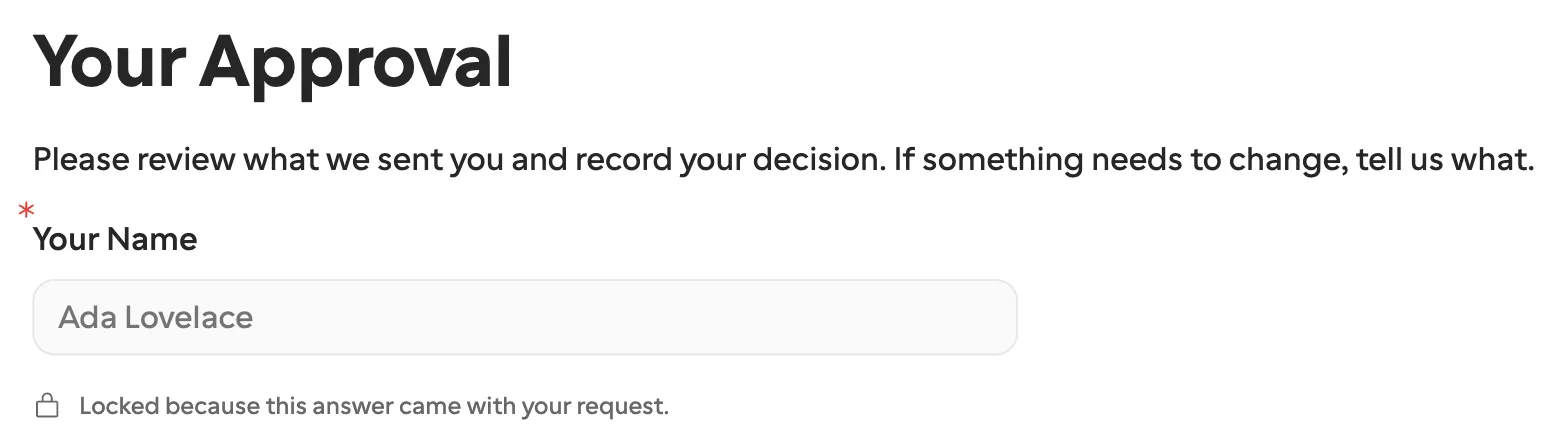
| Values they must not edit | URL parameters in Interfaces; a lock not found in its docs | Prefilled and locked per request, held on the server |
| Nobody answers | A timeout skips the step or ends the run; no replay on its own | The request expires, after 30 days unless you set up to 365, and Request Expired starts a Zap |
Where it does not help. For colleagues, Human in the Loop keeps everything in one run, so use it, or Slack buttons. A request does not pause the Zap.
Zapier’s bill also stays. Create Request is an action step that uses a task, and Filter or Paths need a paid plan, because Free publishes two-step Zaps. On Free there is no room for a step that sends the Request URL, so you need Formstep Pro to email the link or send it by hand.
A request link identifies whoever holds it, and Business adds a one-time email code. To approve only your own Zap’s output, Zapier Pro, from $19.99 a month billed annually, does it in one run, while Formstep’s invitation emails start on Pro at $39 a month, or $32.50 billed yearly.
With a form and three Zaps
7 steps to build and keep running
- Zap 1: a deal moves stage
- Zap 1: email a form link with values in the URL
- Zap 1: add a row to a table of who was asked
- Zap 2: the form is submitted
- Zap 2: find the row and mark it answered
- Zap 3: every morning, find rows with no answer
- Zap 3: email a reminder, count it, give up at three
With a Formstep request
4 steps to build
- Zap 1: a deal moves stage
- Zap 1: Create Request
- Zap 2: Request Completed, with Paths on the outcome
- Zap 3: Request Expired
Formstep handles the rest
- Prefilled and locked fields, held on the server
- A form under your brand, in their language
- Invitation and reminder emails, on Pro
- Answers checked with AI Validation, on Pro
- Expiry and cancellation, sent as events
How do the two Zaps fit together?
The first Zap creates the request and finishes, and the second starts when the request ends, minutes or weeks later. The second knows nothing about the first one’s run, so what it needs travels on the request. Usually your External ID is enough, because it finds the record.
What do you set up first?
You need a Formstep connection in Zapier and a published form. Open Templates and pick Approval: a Decision question with Approve, Decline and Request changes, plus a text box for changes and a signature for approval.
Add hidden fields for what the approver must see and never edit, like quote_number and amount, mention them with @, and publish. The Decision question’s field key is always decision, with values approve, decline and changes, so rewording or translating the labels does not touch the Zap.
How do you send the request in Zap 1?
Start with whatever should ask, like a deal moving to a stage in your CRM, and add Formstep › Create Request:
- Form is the Approval form, and Recipient Email and Recipient Name come from the trigger.
- Delivery decides who sends the link. Email has Formstep send the invitation and reminders, and needs Pro or Business. None means you add a step that sends the Request URL, which makes Zap 1 three steps and needs a paid Zapier plan.
- Hidden fields appear as (context) fields. Map
quote_numberandamountthere. Visible questions you know go in their own fields, and Read-only fields locks them. - External ID is your own id, like
deal-1042-quote. A replayed step returns the same request, and the same External ID with changed inputs fails for 30 days, so use a fresh one per request. - Expires At is optional. A request expires after 30 days unless you set another date, at most 365 days away.
With Delivery on None, a form with Send reminders on still emails reminders if Recipient Email is filled in. Leave it empty to send none.
How does Zap 2 act on the verdict?
Create a second Zap with Formstep › Request Completed as the trigger, and choose the form. It fires for every request to that form, from any source. Test trigger loads a sample, so you can map fields before anyone has answered.
To act on one verdict only, add a Filter:
Only continue if: Your Decision (decision) (Text) Exactly matches approveTo handle each verdict differently, use Paths, one per value: approve moves the deal on, decline tells the account owner, and changes sends the answer to What should change? to the account owner.
Outcome in the request group holds the same value as Your Decision (decision). Compare the value from answers, never the label from display, because the label changes when you reword the option or the recipient answers in another language.
Filters and Paths need a paid Zapier plan. On Free, branch in the app the action writes to.
What happens when nobody answers?
The request expires, and you can act on that. Add two more short Zaps: Request Expired starts when the expiry date passes, and Request Canceled starts when someone withdraws it and carries the reason. Both carry your External ID, so they can update the same deal.
Before expiry, Formstep can chase. On Pro and Business, the form’s reminder schedule emails the recipient when they go quiet, and Remind Request sends one on demand, up to eight per request. On Free you send the link yourself, and the expiry still fires.
How do you test it?
A Test Request sends no email and never starts Zap 2. So build both Zaps, then turn Test Request off, set Delivery to None, use your own email, open the Request URL, answer the form, and check Zap history. Change the External ID when you turn Test Request off.
When do you not need this?
If the approver has a Zapier account, Human in the Loop is simpler. If one run has to pause for someone outside and you run your own n8n, that pattern does it.
A request earns its place when the person is outside your company. The full option list is in the Zapier guide, and the Zapier page has other scenarios, like a vendor confirming bank details from the vendor onboarding template.
How I checked this
Zapier’s side comes from its help center, pricing page and community forum as they read on 5 November 2026, with each page linked. Reddit could not be read. Formstep’s side comes from our pricing and docs. If something is out of date, use Contact support in the footer. The form here is the approval template, which opens with no account.