

Automate employee onboarding and offboarding with Zapier, Slack and Formstep
One row in your people sheet starts it. The Zap works out which accounts the person needs or loses, sends them a Formstep form for the details HR still needs, and posts the checklist to IT in Slack, before the first day or the last.
Published · Updated
Employee onboarding splits one checklist across three teams. HR knows the start date, IT needs to know which accounts to create, and only the new hire knows their legal name, home address and emergency contact.
Offboarding is the same in reverse, with more at stake: an account left open after the last day is a security gap. Formstep asks the employee through a request: a form sent to one person on a private link, with what you already know filled in.
In short: One sheet row becomes an access checklist for IT in Slack, a Formstep form at the employee’s personal address, and a record HR can follow. See the Zaps.
What you need
- A Zapier account with the Formstep app, Google Sheets and Slack connected, on a plan with Paths.
- A sheet with the columns
type,name,personal_email,department,dateandmanager. - A published joiner form and leaver form in Formstep, as below.
The two forms
Both go to a personal address, since a joiner has no work account yet and a leaver is about to lose theirs. Joiners get the Employee Onboarding template, plus a choice question keyed laptop if IT ships hardware. For leavers, build one form:
- Personal email for the final payslip, keyed
personal_email - Equipment they have, a checkbox keyed
equipment - How it comes back, keyed
return_method - Shipping address for a prepaid box, optional, keyed
shipping_address - Feedback, optional, keyed
feedback
How the Zap works, step by step
1. Log the change in one place
A new Google Sheets row, or your HR system’s trigger, starts the Zap with the person’s details.
2. Build the access checklist
A Formatter Lookup Table turns the department into the accounts it uses, with a fallback for other teams.
3. Split joiners from leavers
Paths by Zapier sends each person down the Joiner path or the Leaver path, by the sheet’s type column.
4. Send the employee their form
Formstep Create Request sends the onboarding or offboarding form to their personal email, with their name filled in.
5. Tell IT in Slack
A private IT channel gets the person, the date and the access checklist. The form link is never posted.
6. Close the loop when they answer
A second Zap on Request Completed tells IT what it needs, like the laptop they picked.
Build the Zap in Zapier
Add the steps in this order. In Create Request, pick your form first: each of its questions then shows up as a field of its own, under the question's title, and whatever you map into it is filled in for the recipient.
Zap 1: one row, one form, one checklist
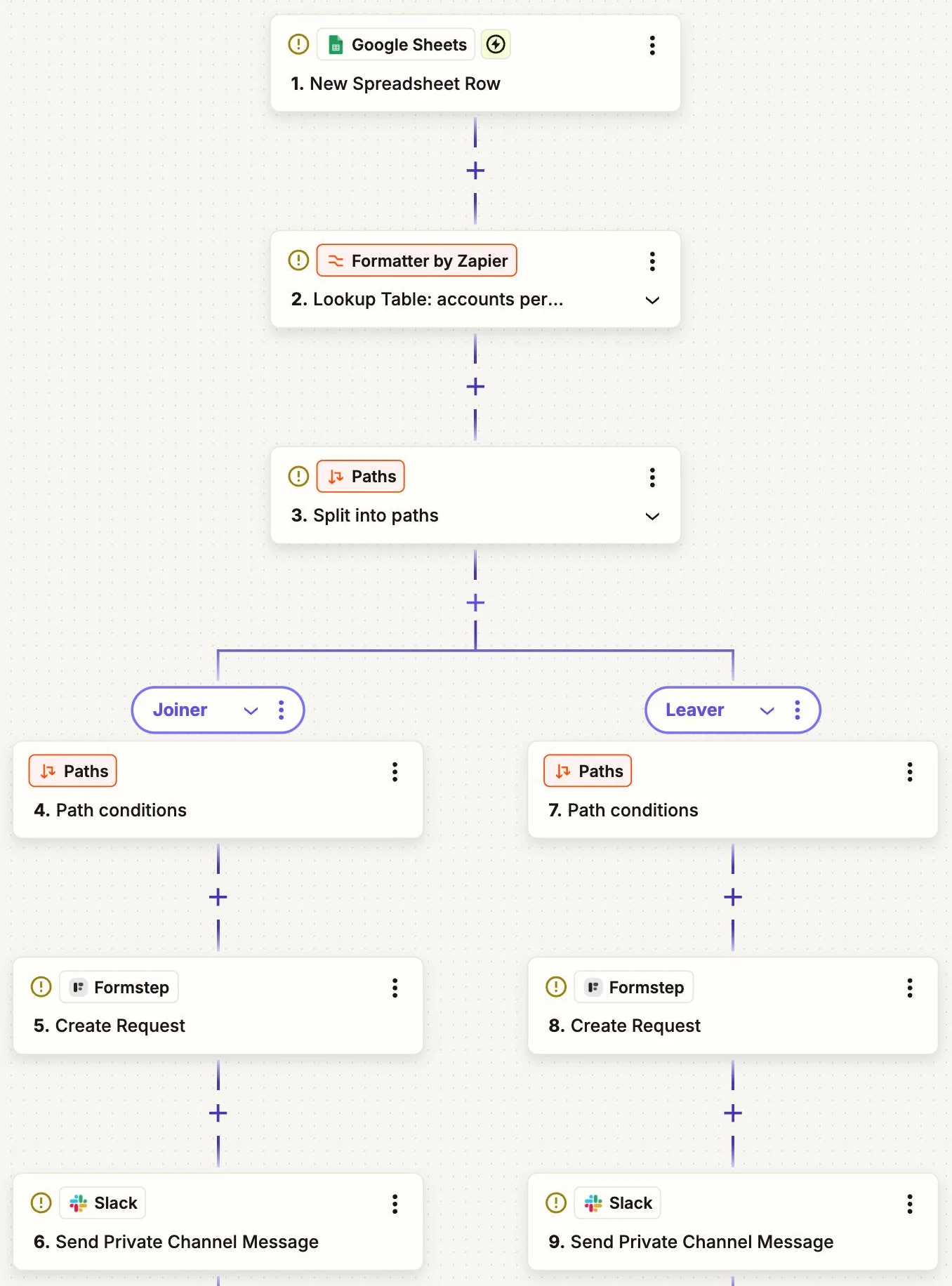
- Google Sheets › New Spreadsheet Row
- Columns:
type,name,personal_email,department,date,manager
- Columns:
- Formatter by Zapier › Utilities › Lookup Table
- Lookup Key:
department - Lookup Table: Engineering: Google Workspace, Slack, GitHub, Linear. Sales: Google Workspace, Slack, HubSpot
- Fallback Value: Google Workspace, Slack
- Lookup Key:
- Paths by Zapier › Split into paths: Joiner and Leaver
- Rules:
typeexactly matchesjoiner, orleaver
- Rules:
- Formstep › Create Request, in each path
- Form: Employee Onboarding, or your offboarding form
- Recipient Email:
personal_email - Prefill: Full Legal Name from
namefor joiners, Personal Email for leavers - Expires At: the
date - Delivery:
Email: Formstep sends the invitation, orNoneplus a Gmail step that sends the Request URL - External ID:
onboarding-oroffboarding-and the row number - Test Request:
Trueuntil you publish
- Slack › Send Private Channel Message, in each path
- Channel: your private IT channel
- Message Text: name, department, date, manager and the accounts from step 2
Zap 2: the answers IT needs
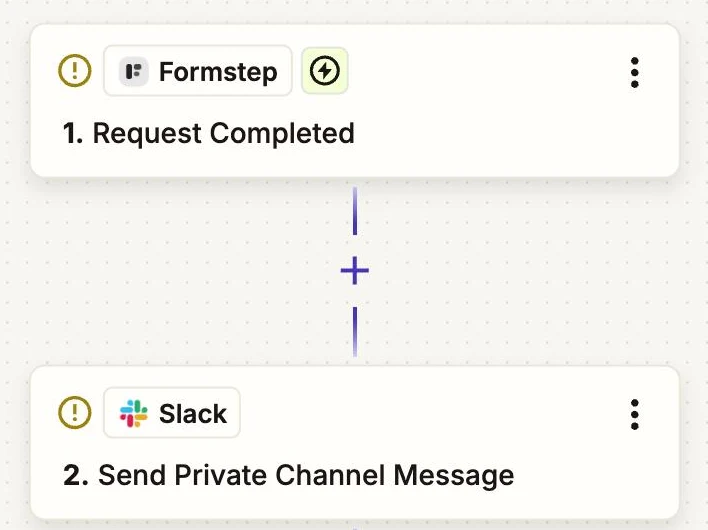
- Formstep › Request Completed
- Form: Employee Onboarding, and a copy of the Zap for offboarding
- Slack › Send Private Channel Message
- Message Text: the name and the answers IT needs, such as
laptoporreturn_method
- Message Text: the name and the answers IT needs, such as
Find Formstep in Zapier's app directory. The Zapier guide covers connecting it and testing without emailing anyone.
Why use Formstep for this step
- IT hears about it on time. The checklist reaches Slack the moment HR adds the row, so accounts are ready on day one and closed on the last.
- The employee types their own details. They confirm their name and add the rest from their phone, with no account.
- Personal data stays out of Slack. Address, date of birth and emergency contact stay in Formstep, where you can delete the request later.