

Capture an email, then send a HubSpot-prefilled form with Zapier
A short public form asks for an email. A Zap looks the person up in HubSpot and sends them a second Formstep form with their name and company already filled in, so they confirm what you know and add the rest.
Published · Updated
Your CRM already knows most of what a long signup form asks: a name, a company, the plan someone asked about last year. Asking again costs you signups, and asking nothing leaves sales chasing details by email.
Formstep sends that second form as a request: a form for one person, on a private link, with what you already know filled in.
In short: A one-question public form collects the email, a Zap finds the person in HubSpot, and Formstep sends them a second form with their details filled in to confirm and finish. See the Zap.
What you need
- A Zapier account with the Formstep app and HubSpot connected. A three-step Zap needs a paid Zapier plan.
- Two published Formstep forms: a public form with one email question keyed
email, and the Client Onboarding template. - Optional: Formstep for HubSpot on the second form, to write the answers back to the contact.
Where it fits
Quote and demo requests, waitlists that turn into accounts, and renewals where little has changed.
How the Zap works, step by step
1. Collect the email on a public form
A one-question Formstep form, with its email question keyed email, embedded on your site or shared by link.
2. Start the Zap on each submission
The Formstep trigger Public Link Submission Created starts the Zap with every answer from the form.
3. Find the person in HubSpot
HubSpot Find Contact searches by that email. If nobody matches, the Zap carries on with less filled in.
4. Send the second form
Formstep Create Request sends Client Onboarding to the same email, with their name and company filled in and the email locked.
5. They check it and finish it
The person opens their private link, fixes anything out of date and answers the rest. They need no account.
6. Write the answers back to HubSpot
The HubSpot integration on the second form updates the contact when they submit.
Build the Zap in Zapier
Add the steps in this order. In Create Request, pick your form first: each of its questions then shows up as a field of its own, under the question's title, and whatever you map into it is filled in for the recipient.
Zap 1: public form to prefilled request
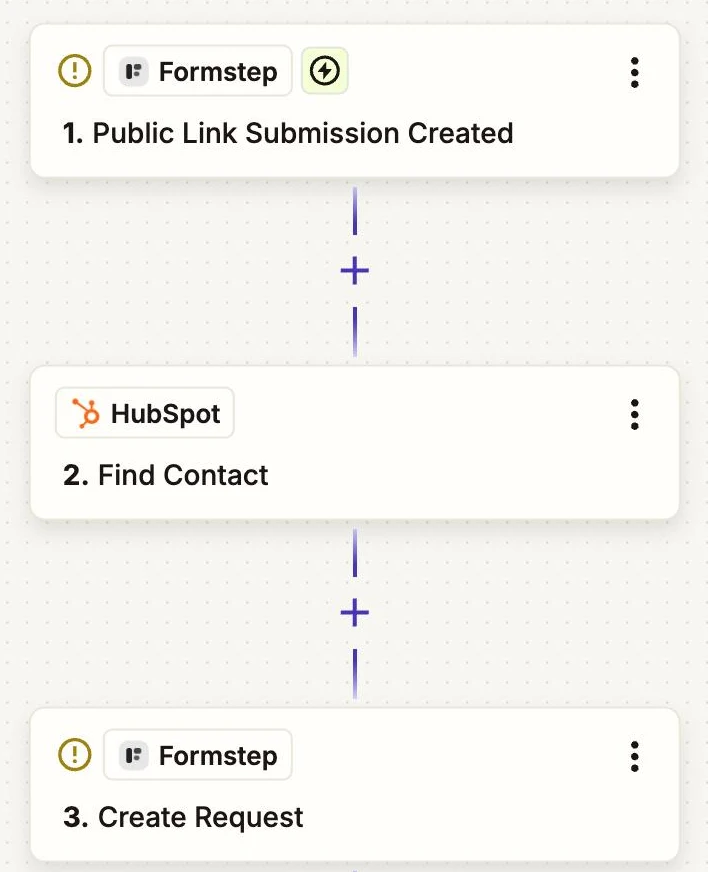
- Formstep › Public Link Submission Created
- Form: your one-question public form
- HubSpot › Find Contact
- Search by: Email, from step 1
- If nothing is found: let the Zap continue
- Formstep › Create Request
- Form: Client Onboarding
- Recipient Email and Email Address: the email from step 1
- Full Name and Company: the first and last name, and the company, from step 2
customer_id(context): the Record ID from step 2- Read-only fields: Email Address
- Delivery:
Email: Formstep sends the invitation, orNoneplus a Gmail step that sends the Request URL - External ID:
signup-and the Submission ID - Test Request:
Trueuntil you publish
Find Formstep in Zapier's app directory. The Zapier guide covers connecting it and testing without emailing anyone.
Why use Formstep for this step
- The public form stays one question long. Visitors leave an email, and the longer questions go only to people who asked to hear from you.
- CRM data never sits on a public page. It travels in a private request link to the address that was typed in, and nowhere else.
- Answers come back by field key.
company_namestayscompany_namewhen you reword or translate the question, so later Zap steps keep working.