

Read an invoice PDF with AI in Zapier, then have the sender confirm it
A supplier emails an invoice. AI by Zapier reads the PDF, Formstep sends the supplier a form with every value filled in and their invoice above it, and they fix whatever the AI got wrong before it reaches your books.
Published · Updated
An AI step can read a PDF in seconds and prefill a Formstep form with what it found. Now and then it swaps two digits of a total and looks just as sure: in our n8n test run, it read 27 325 as 27 235.
So the Zap asks the one person who knows the invoice: the sender. Formstep sends them a request, a form on a private link with what the AI read already filled in, and they confirm or fix each value.
In short: An AI step reads the emailed PDF, the sender gets a form with every value filled in and their PDF above it, and a second Zap books what they confirmed. See the Zaps.
What you need
- A Zapier account with the Formstep app, Gmail, Xero and Slack connected, on a plan with Paths.
- The Confirm Invoice Details template, published in your Formstep workspace.
- A Gmail label, such as
invoices, that your invoice emails land in.
Beyond invoices
Purchase orders, claims and contracts work the same way, each with its own form. To do it from a chat instead, Formstep’s MCP server lets an AI agent such as Claude send the same request.
How the Zap works, step by step
1. Catch the PDF
Gmail New Attachment starts the Zap when an invoice arrives. Google Drive New File in Folder works too.
2. Have AI read it
An AI by Zapier step reads the PDF and returns one output field per form question: supplier, invoice number, dates and total.
3. Send the sender a prefilled form
Formstep Create Request fills in the supplier, invoice number and dates on Confirm Invoice Details, and shows their PDF at the top.
4. Keep what the AI read
The same values go in Metadata, which the sender never sees, so the second Zap can spot what they changed.
5. The sender confirms or corrects
They check each value against their invoice, fix what is wrong, and switch on confirmed.
6. Book it in a second Zap
Request Completed starts it. Invoices nobody corrected become a bill in Xero; corrected ones go to finance in Slack first.
Build the Zap in Zapier
Add the steps in this order. In Create Request, pick your form first: each of its questions then shows up as a field of its own, under the question's title, and whatever you map into it is filled in for the recipient.
Zap 1: PDF in, request out
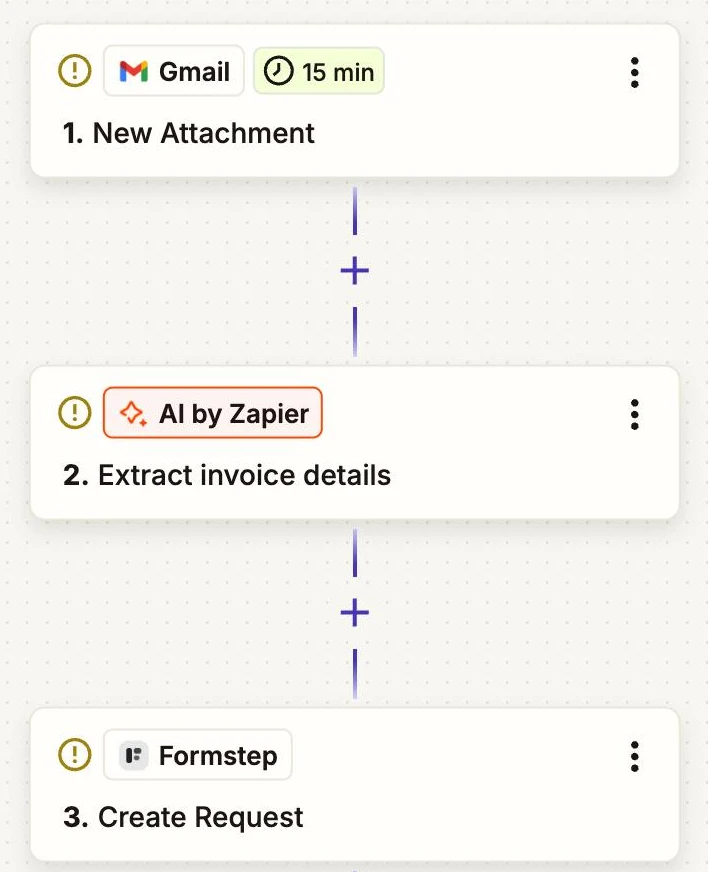
- Gmail › New Attachment
- Which emails: a label such as
invoices, so only invoices start the Zap
- Which emails: a label such as
- AI by Zapier › a prompt with output fields
- Prompt: read the attachment from step 1 and return the supplier, invoice number, dates as YYYY-MM-DD and the total as a number
- Output Fields: Supplier Name, Invoice Number, Invoice Date, Due Date, Total Amount
- Formstep › Create Request
- Form: Confirm Invoice Details
- Recipient Email: From Email, from step 1
- Supplier, Invoice Number, Invoice Date, Due Date: the step 2 output of the same name
- Documents: the attachment from step 1
- Metadata: each step 2 output, under keys such as
ai_total_amount - Delivery:
Email: Formstep sends the invitation, orNoneplus a Gmail step that sends the Request URL - External ID:
invoice-and the invoice number - Test Request:
Trueuntil you publish
Zap 2: confirmed invoice to your books
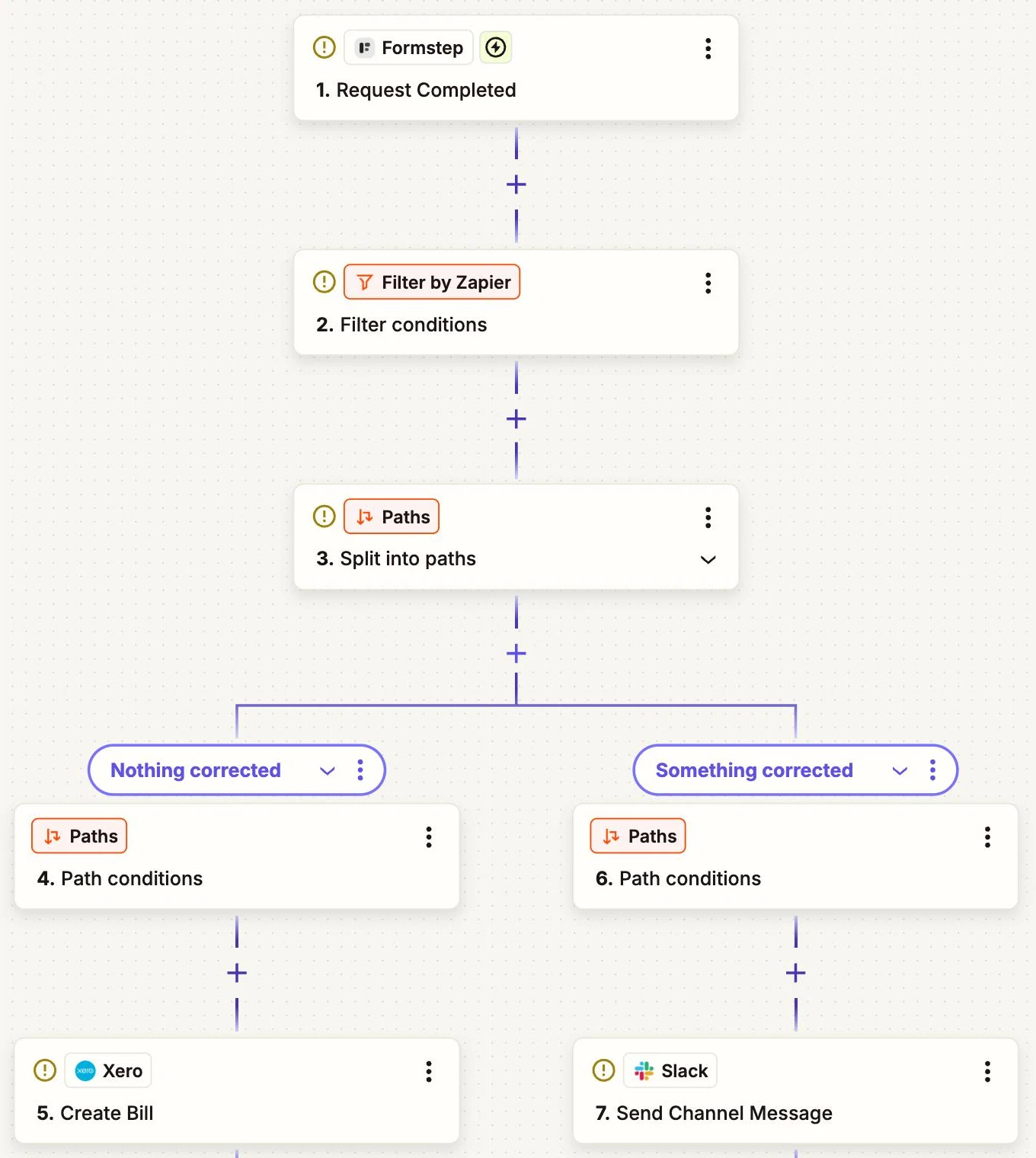
- Formstep › Request Completed
- Form: Confirm Invoice Details
- Filter by Zapier › Only continue if
- Rule:
confirmedis true
- Rule:
- Paths by Zapier › Split into paths
- Nothing corrected: every answer matches its
ai_value in Metadata - Something corrected: any answer differs
- Nothing corrected: every answer matches its
- Xero › Create Bill, in Nothing corrected
- Contact, reference, dates and total: the confirmed answers from step 1
- Slack › Send Channel Message, in Something corrected
- Message Text: the supplier, the invoice number and what the sender changed
Find Formstep in Zapier's app directory. The Zapier guide covers connecting it and testing without emailing anyone.
Why use Formstep for this step
- The person who wrote it checks it. The supplier knows their own invoice number and total, and spots a wrong digit in seconds.
- The document sits beside the fields. The PDF shows inside the form, so nobody digs for the email they sent.
- You learn where the AI is weak. Zap 2 can log which fields senders correct, so you know what to fix in the prompt.