

n8n PDF extraction with AI, confirmed by the person who sent it
n8n PDF extraction with AI gets a digit wrong now and then. Prefill a Formstep request with what the model read, and the invoice sender confirms or corrects it.
By Onur Hakbilen, founder of Formstep · Published
I like using AI to read documents, and I do not like booking what it read without a check. n8n PDF extraction with AI takes three nodes and gets an invoice right nearly every time. When it misreads a digit it looks exactly as sure as before, and asking your own team to check every extraction brings back the manual work you were trying to remove.
Whoever sent the document is better placed to check. Here AI reads the PDF, the supplier gets a form with the invoice above it and every value filled in, and the workflow carries on with what they confirmed plus a list of what they corrected.
You can import the finished workflow from formstep-invoice-ai-confirm.json. It pins a sample result on the AI node, so it runs before you add a model; unpin that once your model is connected. I checked it on self-hosted n8n 2.44 with version 0.13.0 of the node.
In short: AI reads the PDF, the supplier checks every value in a form with the invoice above it, and the workflow carries on with what they confirmed plus a list of what they corrected.
Why n8n PDF extraction goes wrong quietly
Two things go wrong, and neither throws an error. Threads read on 5 November 2026.
- The PDF has no text. Extract from File reads the text layer, and a scan has none, so it returns little or nothing. A three-page PDF came back as a few lines (October 2024), and a moderator said scans need OCR, which n8n does not do itself. Another found digital invoices worked and scanned ones did not (September 2025).
- The model returns a plausible wrong value. The Information Extractor returns the JSON shape you asked for, and nothing checks the values. A builder’s writeup (August 2026) describes a misread digit reaching the approving manager unnoticed. In my own test run the model read a total of 27 325 as 27 235, and the execution looked the same as the runs where it was right.
Three ways to verify extracted data, and when each wins
Code checks and your own team are the usual options, but the person who sent the document is the better check when you can reach them:
- Checks in code. Subtotal plus tax equals total, the due date follows the invoice date, the invoice number is new. They cost nothing, so add them anyway, but they miss a consistent misreading: a total misread on a one-line invoice with no tax still adds up.
- A person on your team. It suits documents nobody outside should see again, or when there is no one to ask, like a scan of an old contract. It costs a person’s time on every document.
- The sender. Shown their own invoice with the values filled in, the supplier confirms in seconds or fixes the wrong one at the source. It wins when the sender is outside your company and reachable by email.
The rest of this article builds that option. Your workflow creates a request from the invoice verification form, prefilled with what the model read and with the PDF attached, and the answers come back under the same field keys. Prefill, locked fields and the callback are on every plan; having Formstep send the email needs Pro.
Before you start
- The Formstep node on a self-hosted n8n with a public HTTPS address, and a Formstep credential. On n8n Cloud, call the REST API from an HTTP Request node instead.
- A credential for any chat model the n8n AI nodes take, such as Anthropic, OpenAI or Google Gemini.
- A form. In Formstep, open Templates, pick Confirm Invoice Details, click Use template and publish it. It is the invoice verification template, with a Documents block for the invoice and field keys
supplier_name,invoice_number,invoice_date,due_date,total_amount,confirmedandnotes.
1. Get the PDF
The example downloads a sample invoice with an HTTP Request node, Response Format set to File. In real use it is a Gmail or Outlook trigger on the invoices inbox, with the sender as the recipient, or a new file in a Google Drive folder.
2. Extract the text
Add an Extract from File node with Operation set to Extract From PDF. The text lands in {{ $json.text }}.
A scan or a photo has no text. For those, use a model node that reads images or PDFs itself instead of this step and the next. If you get both kinds, check the length of text in an If node and route the empty ones to that path.
3. Read it with AI
Add an Information Extractor node, connect your chat model, and set Text to {{ $json.text }}. Under Attributes, add one attribute per value, named after the field key it fills:
| Name | Type | Description |
|---|---|---|
supplier_name |
String | The company that issued the invoice |
invoice_number |
String | The invoice number, as printed |
invoice_date |
Date | The invoice date, as YYYY-MM-DD |
due_date |
Date | The payment due date, as YYYY-MM-DD |
total_amount |
Number | The total to pay, including VAT, as a number without currency |
What it read comes back under {{ $json.output }}, like {{ $json.output.total_amount }}. Naming the attributes after the field keys keeps the mapping in step 5 one to one,.
4. Put the file back
The Information Extractor returns what it read, not the PDF, so put the file back to attach it. Add a Merge node with Mode set to Combine and Combine By set to Position. Connect the HTTP Request node to input 1 and the Information Extractor to input 2. Each item then has the file in data and the reading in output.
5. Ask the supplier to confirm
Add a Formstep Create request node and pick the Confirm Invoice Details form:
- Recipient Email is the supplier’s address.
- Values to Send maps each field to its value, like
{{ $json.output.invoice_number }}. - Documents takes the binary field
data, namedInvoice {{ $json.output.invoice_number }}. - Turn on Wait for the Outcome, and add a Wait node after it with Resume set to On Webhook Call.
The supplier sees every value filled in, with the invoice above them, and fixes what is wrong without signing in.
Formstep emailing them needs Pro or Business; on Free, leave Delivery at None and send the request’s url with your own email node. The request expires after 30 days unless you set Expires At, so set it sooner for an invoice due in two weeks.
6. See what was corrected
Add an If node that checks {{ $json.body.type }} is request.completed, and on its true output a Code node that compares the AI’s reading with the confirmed answers:
// Compare what the AI read with what the supplier confirmed.
const read = $('Read the invoice with AI').item.json.output
const confirmed = $json.body.data.answers
const corrected = Object.keys(read).filter((key) => String(read[key]) !== String(confirmed[key]))
return { json: { invoice: confirmed, corrected, notes: confirmed.notes ?? null } }
In the test run the supplier corrected the total to 27 325 and left a note, so corrected listed total_amount.
Book invoice in your accounting tool, and send those where corrected is not empty to a person. You now review the exceptions, not every invoice. The If node’s false output catches an expired request, where you chase the supplier.
Variations
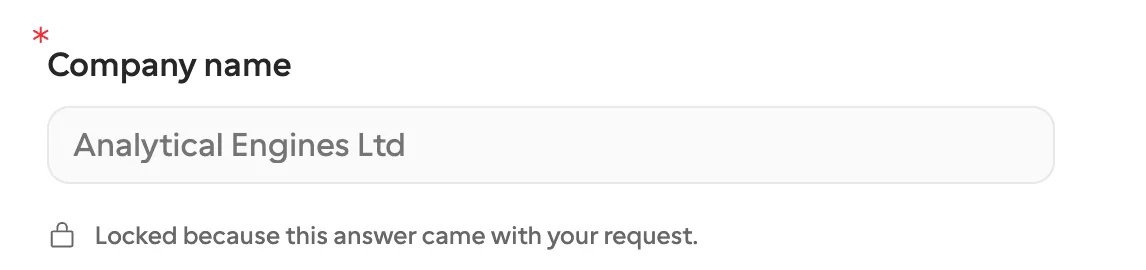
Lock what you are sure of. Values from your own system, like the order number you issued, go under Read-Only Field Names or IDs, so only the AI’s reading is open to correction. The recipient sees them like this:
Add the code checks first. An If node before the request can route readings that fail the arithmetic to your team instead of the supplier.
No form yet. Set Form Source to New Form and build it from the attributes, the way collecting documents per case does. To show the invoice above the values, use a published form.
When you do not need this
Skip the confirmation when a wrong value costs little, and spot-check a sample instead. If nobody can be asked, route the document to your team. On n8n Cloud the node is not available yet, and the REST API does the same job with more typing. If the sender is a colleague, n8n’s own form may be enough.
Formstep earns its place when the person who knows the answer is outside your company. The same pause-and-resume shape, without the AI step, is in pausing an n8n workflow until the customer confirms, and the n8n integration page lists what the node does. The step-by-step guide is at docs.formstep.io. To start from a working copy, import the PDF reader workflow template.